
TradeTapp's integration with Cost Management streamlines your supplier qualification and risk management by connecting Cost Management with TradeTapp's company prequalification platform. Learn more about Cost Management.
This integration offers several key benefits:
- Seamless data sharing: Access supplier qualification and risk profile data directly within Cost Management without switching between systems.
- Automatic supplier matching: The system uses Tax ID to match supplier companies between TradeTapp and Cost Management for accurate data synchronization.
- Centralized agreement management: Upload and manage Master Service Agreements with effective and expiration dates in one location.
- Enhanced risk visibility: View supplier risk status, qualification status, and financial limits directly in contract flyouts.
- Insurance document access: Download and review insurance program documents with expiration dates directly from contracts.
- Document automation: Pull qualification data into contract templates using document variables for consistent, accurate documentation.
Check out the overview video to see the workflow in action:
In this article, you'll learn how to:
- Configure TradeTapp settings in Autodesk Construction Cloud Library
- View Qualification and Risk Profile in Contracts in Cost Management
- Use Document Variables for TradeTapp Data in Cost Management
-
Troubleshoot the TradeTapp integration
To configure TradeTapp settings in the Autodesk Construction Cloud Library
This section explains how to connect your TradeTapp account at the account level in the Library in Autodesk Construction Cloud. Once connected, supplier qualification and risk profile data from TradeTapp automatically syncs to Cost Management contracts.
Important: Only account administrators and members with full permissions in Autodesk Construction Cloud can access Account Admin and configure the TradeTapp integration.
To configure the TradeTapp integration:
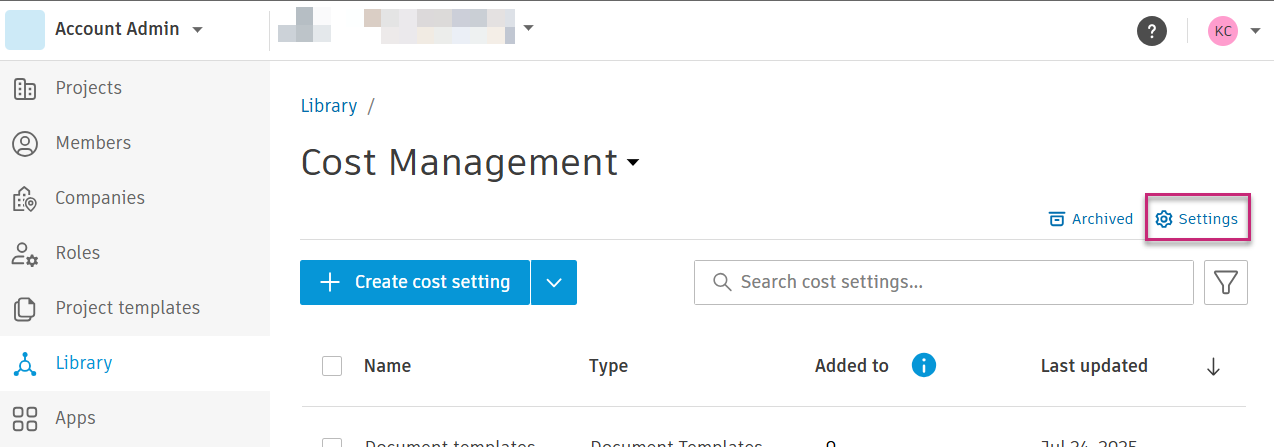
- Log into Autodesk Construction Cloud and go to "Account Admin".
- Click "Library".
- Choose "Cost Management".
-
Click "Settings".
- Find "TradeTapp" in the list of integration partners.
-
Click "Log in".
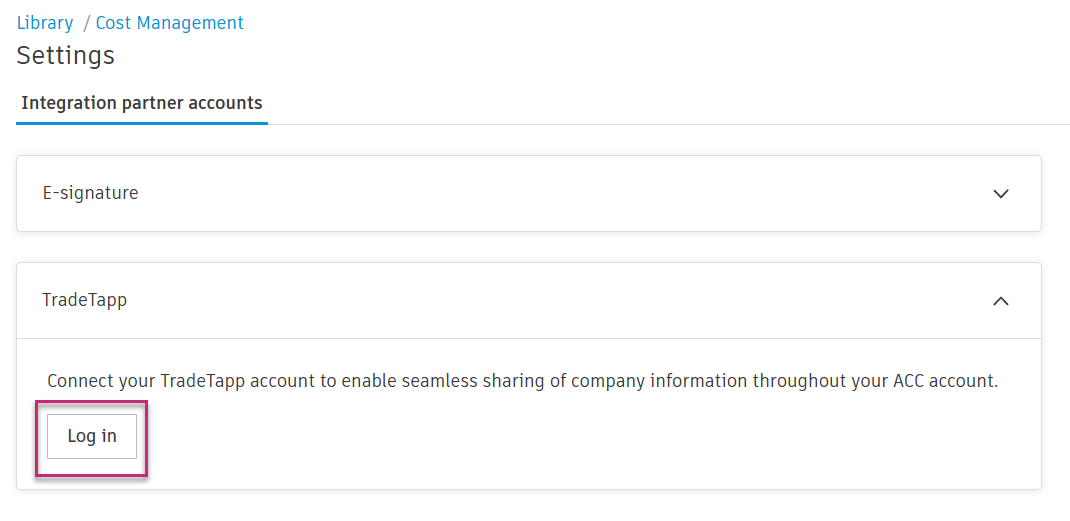
- Sign in to your TradeTapp account when prompted.
Once you sign in, the system displays your logged-in status with your account information.

To view Qualification and Risk Profile in Contracts in Cost Management
Once TradeTapp integration is configured, the Qualification and Risk Profile section appears in contract flyouts. This section displays comprehensive supplier information synced from TradeTapp.
To view qualification and risk profile data:
- In Cost Management, select the Cost tool from the left navigation.
- Open a contract to display its flyout.
- Scroll to the Qualification and Risk Profile section.
-
Click Log in to TradeTapp to view the full qualification and risk profile of the supplier in the TradeTapp platform.

Qualification and Risk Profile Fields
The Qualification and Risk Profile section displays the following information:
| Field | Description |
| Company Name (Legal Entity Name) | The official legal name of the supplier company from TradeTapp. There are a few options from a vendor's qualification that can be used for "Company Name". Learn more in Vendor Company Name Preference. |
| Risk Status | The current risk assessment level. |
| Qualification Status | The current qualification standing. |
| Internal Single Limit | The maximum amount for individual transactions in USD. |
| Internal Total Limit | The maximum total outstanding amount in USD. |
| Offices (Legal Entity Address) | Physical address of the supplier's legal entity. |
| Internal Unique ID | The unique identifier assigned in TradeTapp. |
| Business Tax ID | The tax identification number used for matching between systems. |
| Enterprise Business Certifications | Relevant certifications. |
| Professional Licenses | Applicable professional licenses with identification numbers. |
| Insurance Program | Insurance documents with expiration dates that you can download to review coverage details. |
| Insurance Documents | Downloadable insurance documents including General Liability, Umbrella/Excess, and Professional Liability coverage with expiration dates for tracking coverage validity. |
| MSA (Master Service Agreement) | The uploaded Master Service Agreement document with its effective date. Click the document name to download and review the agreement terms. The Effective Date shows when the MSA became active and is displayed in MM/DD/YYYY format. Learn how to upload a Master Service Agreement to a qualification in TradeTapp. |
To use Document Variables for TradeTapp Data in Cost Management
Document variables let you automatically pull TradeTapp qualification data into your contract templates. This feature ensures consistency and reduces manual data entry when generating contract documents.
To learn how to access and use the Variable Finder tool, see Variables in Cost Management. The Variable Finder lets you browse available variables, preview data, and copy variable syntax for your templates.
Available TradeTapp Variables
In the Variable Finder, navigate to Contract > Supplier > Qualification to find related variables:
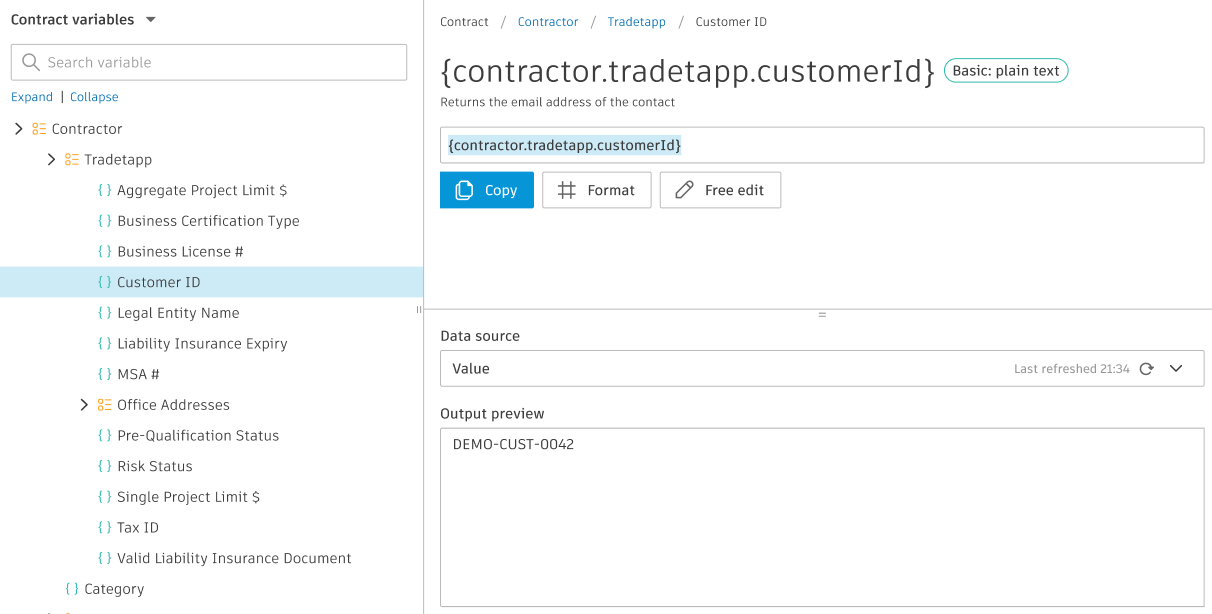
Master Service Agreement variables:
-
Effective Date:
{contract.supplier.qualification.msa.effectiveDate}- The effective date of the Master Service Agreement -
File Name:
{contract.supplier.qualification.msa.fileName}- The file name of the uploaded MSA document
Additional qualification variables:
The Variable Finder provides access to additional TradeTapp qualification variables, including:
- Legal Entity Name and Address information
- Professional Licenses with identification numbers
- Business Tax ID
- Trade classifications
- Company website URL
- Risk status and qualification metrics
- Financial limits
Tip: Use the Variable Finder's Copy button to copy the exact variable syntax for any qualification field. Then paste it into your Microsoft Word or Excel document template. The Data source preview shows the latest five updated instances to help you verify that the variable will pull correct information.
Troubleshoot the TradeTapp Integration
This section provides solutions to common issues that you might encounter when using the TradeTapp integration with Cost Management.
| Issue | Solution |
| Unable to connect TradeTapp account |
|
| Qualification data not appearing in contracts |
|
| Tax ID matching issues |
The system uses Tax ID to match supplier companies between TradeTapp and Cost Management. If data isn't syncing correctly:
Once the Tax IDs match, the qualification data should sync automatically within a few minutes. |
| MSA upload failures |
Verify that:
If problems persist, contact TradeTapp support for assistance with document uploads. |
| Document variables not populating |
|
Comments
0 comments
Article is closed for comments.